Konektor źródłowy dla Netezza
Ten przewodnik opisuje, jak skonfigurować digna do połączenia z Netezza przez ODBC, używając ciągu połączenia bez DSN.
Część konfiguracji po stronie digna jest taka sama dla każdej technologii — gdzie tworzy się połączenia, jak szyfrowane są wartości właściwości, jak testuje się połączenie i co oznaczają tryby profilowania. Opisano to w Przeglądzie połączeń z bazami danych. Ta strona omawia to, co jest specyficzne dla Netezza.
1. Zainstaluj sterownik ODBC
Zainstaluj sterownik ODBC NetezzaSQL (część narzędzi klienckich IBM Netezza) na maszynie, na której działa backend digna, postępując zgodnie z oficjalną instrukcją instalacji producenta.
Odczytaj dokładną nazwę zarejestrowanego sterownika na swoim hoście, jak opisano w Instalacji sterownika ODBC na hoście digna.
2. Właściwości ODBC
Przykład, nie specyfikacja
Poniższy zestaw to jedna z kombinacji, o których wiadomo, że działają. Właściwości należą do sterownika NetezzaSQL, więc ich nazwy, wartości domyślne i akceptowane wartości różnią się między wersjami klienta i platformami, a urządzenie zabezpieczone TLS wymaga więcej niż pokazane tutaj właściwości. Potraktuj to jako punkt wyjścia i sprawdź dokumentację zainstalowanej wersji klienta.
Dodaj następujące właściwości w ekranie Add DB Connection:
| Klucz | Przykładowa wartość | Uwagi |
|---|---|---|
DRIVER | {NetezzaSQL} | Musi odpowiadać nazwie sterownika zarejestrowanej na hoście digna. Nawiasy klamrowe to zwyczajowy sposób zapisu tej nazwy |
SERVER | netezza.example.com | Nazwa serwera lub adres IP |
PORT | 5480 | |
DATABASE | TEST | Baza danych, w której rozpoczyna się sesja |
UID | ADMIN | Użytkownik bazy danych |
PWD | <password> | Zaznacz Encrypted |
Powstały ciąg połączenia wygląda tak:
W zależności od wersji sterownika, konfiguracji i wymagań bezpieczeństwa mogą być potrzebne kolejne właściwości — na przykład SecurityLevel i CaCertFile dla urządzenia zabezpieczonego TLS. Każdą opcję dostępną w oknach Advanced, SSL i Driver sterownika można dodać jako właściwość.
3. Konfiguracja digna
W ekranie Add DB Connection podaj następujące dane:
Name:               Name of the connection. This is used for referencing the connection in other screens.
Technology:         Netezza
Profiling Mode:     Standard, Permanent or Session
Work Schema:        Schema for the work tables of "Permanent" profiling, e.g. "Digna_Work"
4. Uwagi dotyczące Netezza
- Obowiązują zarówno katalogi, jak i schematy. digna wyświetla jako katalogi bazy danych, które użytkownik może zobaczyć (z
_V_DATABASE), a pod nimi ich schematy (z_V_SCHEMA), dzięki czemu jedno połączenie może obsługiwać źródła w więcej niż jednej bazie.DATABASEdecyduje tylko o tym, gdzie rozpoczyna się sesja. - Identyfikatory są zapisane wielkimi literami, o ile nie utworzono ich w cudzysłowach — dlatego powyższe przykłady używają
TESTiADMIN. - Tryby profilowania. Permanent tworzy tabele robocze w Work Schema, więc użytkownik potrzebuje tam uprawnienia
CREATE TABLE. Session używaCREATE TEMPORARY TABLEi nie dotyka Work Schema. Standard wymaga wyłącznie dostępu do odczytu.
5. Weryfikacja sterownika (opcjonalnie)
Konfigurowanie źródła danych ODBC nie jest wymagane dla połączenia bez DSN, ale okno dialogowe samego sterownika to wygodny sposób, aby przed wprowadzeniem danych w digna potwierdzić, że sterownik i Twoje poświadczenia działają.
Krok 1
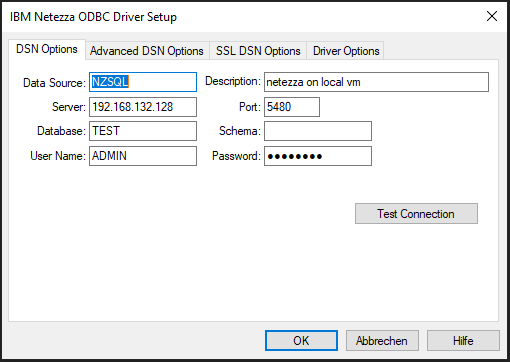
Pola w DSN Options odpowiadają jeden do jednego właściwościom z sekcji 2. W zależności od sterownika Netezza, konfiguracji i wymagań bezpieczeństwa możesz potrzebować danych również w zakładkach Advanced DSN Options, SSL DSN Options lub Driver Options; przy najprostszej konfiguracji wystarczy DSN Options.
Kliknij przycisk Test Connection.
Krok 2
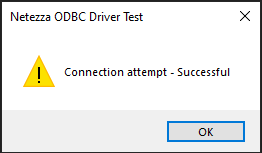
Gdy pojawi się ekran powodzenia, sterownik działa, a wartości są poprawne.