Source Connector for PostgreSQL
This guide describes how to configure digna to connect to PostgreSQL over ODBC, using a DSN-less connection string.
The digna side of the setup is the same for every technology — where connections are created, how property values are encrypted, how a connection is tested and what the profiling modes mean. It is described in Database Connections Overview. This page covers what is specific to PostgreSQL.
1. Install the ODBC Driver
Install the PostgreSQL ODBC driver (psqlODBC) on the machine that runs the digna backend, following the vendor's official installation guide.
The driver registers itself under a name that differs per platform and package — commonly PostgreSQL Unicode(x64) on Windows and PostgreSQL ODBC Driver(UNICODE) on Linux. Read the exact name off your host as described in Install the ODBC Driver on the digna Host, and use that name for the DRIVER property below.
2. ODBC Properties
An example, not a specification
The set below is one combination that is known to work. The properties belong to the psqlODBC driver, so their names, defaults and accepted values differ between driver versions and platforms, and what your server demands — SSL in particular — may differ too. Use this as a starting point and check the documentation of the driver version you installed.
Add the following properties in the Add DB Connection screen:
| Key | Example value | Notes |
|---|---|---|
DRIVER | PostgreSQL ODBC Driver(UNICODE) | Must match the driver name registered on the digna host |
SERVER | db.example.com | Server name or IP address |
PORT | 5432 | |
DATABASE | digna_source_db | Database that holds the source schemas. It is the only database this connection can profile |
UID | digna_source_user | Database user |
PWD | <password> | Tick Encrypted |
SSLMode | prefer | disable, allow, prefer, require, verify-ca or verify-full — must be accepted by the server |
The resulting connection string looks like this:
DRIVER=PostgreSQL ODBC Driver(UNICODE);SERVER=db.example.com;PORT=5432;DATABASE=digna_source_db;UID=digna_source_user;PWD=<password>;SSLMode=prefer
Any further psqlODBC option can be added as an additional property — for example ReadOnly=1 for a read-only session, or ConnSettings to run SET statements at connect time.
3. digna Configuration
In the Add DB Connection screen, provide the following:
Name:               Name of the connection. This is used for referencing the connection in other screens.
Technology:         Postgres
Profiling Mode:     Standard, Permanent or Session
Work Schema:        Schema for the work tables of "Permanent" profiling, e.g. "digna_work"
4. Notes on PostgreSQL
SSLModemust match the server. A server configured withhostsslrejectsSSLMode=disable, andverify-caorverify-fulladditionally need the root certificate to be available to the driver on the digna host. If you had to choose a specific mode when testing the driver, use the same one here.- One connection sees one database. digna offers the schemas of the database named in
DATABASE, because PostgreSQL reports only the current database as a catalog. Source tables in another database need their own connection. - Profiling modes. Permanent creates the work tables in Work Schema, so the user needs
CREATEon that schema. Session usesCREATE TEMPORARY TABLEand does not touch Work Schema. Standard needs read access only.
5. Verifying the Driver (optional)
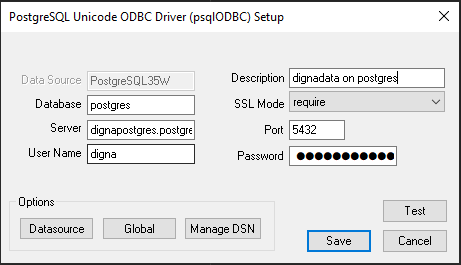
Configuring an ODBC data source is not required for a DSN-less connection, but the driver's own dialog is a convenient way to confirm that the driver works and that the server accepts your credentials and SSL mode before you enter them in digna.
Step 1
Step 2 – Test the connection
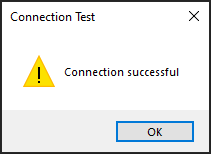
Click the Test Connection button.
The values you entered here are exactly the values the properties in section 2 take.