Source Connector for Oracle
This guide describes how to configure digna to connect to Oracle Database over ODBC, using a DSN-less connection string.
The digna side of the setup is the same for every technology — where connections are created, how property values are encrypted, how a connection is tested and what the profiling modes mean. It is described in Database Connections Overview. This page covers what is specific to Oracle.
1. Install the ODBC Driver
The Oracle ODBC driver is part of the Oracle Client (the Instant Client "ODBC" package is enough). Install it on the machine that runs the digna backend, following the vendor's official installation guide.
The driver registers itself as Oracle in <OracleHomeName> — for example Oracle in OraDB21Home1 or Oracle in instantclient_21_13. The home name differs per installation, so read the exact name off your host as described in Install the ODBC Driver on the digna Host.
2. ODBC Properties
An example, not a specification
The set below is one combination that is known to work. The properties belong to the Oracle ODBC driver, so their names, defaults and accepted values differ between client versions, and the driver name in particular depends on the Oracle home on your host. Use this as a starting point and check the documentation of the client version you installed.
Add the following properties in the Add DB Connection screen:
| Key | Example value | Notes |
|---|---|---|
Driver | Oracle in OraDB21Home1 | Must match the driver name registered on the digna host |
DBQ | (DESCRIPTION=(ADDRESS=(PROTOCOL=TCP)(HOST=db.example.com)(PORT=1521))(CONNECT_DATA=(SERVICE_NAME=digna_source_db))) | The database to connect to — see below |
UID | DIGNA_SOURCE_USER | Database user |
PWD | <password> | Tick Encrypted |
The resulting connection string looks like this:
Driver=Oracle in OraDB21Home1;DBQ=(DESCRIPTION=(ADDRESS=(PROTOCOL=TCP)(HOST=db.example.com)(PORT=1521))(CONNECT_DATA=(SERVICE_NAME=digna_source_db)));UID=DIGNA_SOURCE_USER;PWD=<password>
The DBQ value
DBQ accepts three forms. They are equivalent for digna; they differ in what has to be configured on the digna host:
| Form | Example | Requires |
|---|---|---|
| Full connect descriptor | (DESCRIPTION=(ADDRESS=(PROTOCOL=TCP)(HOST=db.example.com)(PORT=1521))(CONNECT_DATA=(SERVICE_NAME=digna_source_db))) | Nothing — everything is in the property. Recommended |
| TNS alias | DIGNA_SOURCE | The alias must exist in the tnsnames.ora of the Oracle Client on the digna host |
| Easy Connect | db.example.com:1521/digna_source_db | An Oracle Client that supports Easy Connect (12c and later) |
Prefer the full descriptor
A TNS alias moves half of the connection definition into a file on the digna host, where it is easy to forget when the host is rebuilt or digna is moved. The full descriptor keeps the connection self-contained — which is the point of a DSN-less setup.
Note the parentheses in a descriptor are fine inside a connection string, but if your password contains ;, brace it: PWD={p@ss;word}.
3. digna Configuration
In the Add DB Connection screen, provide the following:
Name:               Name of the connection. This is used for referencing the connection in other screens.
Technology:         Oracle
Profiling Mode:     Standard, Permanent or Session
Work Schema:        Schema for the work tables of "Permanent" profiling, e.g. "DIGNA_WORK"
4. Notes on Oracle
- Schemas are users. digna lists Oracle users as schemas, so the source schema is the owner of the tables —
DIGNA_SOURCE_USERin the example above. The connection user needsSELECTon those tables, either directly or through a role. - One connection sees one database. The catalog digna offers is the database the connection is attached to, so
DBQdecides which service, and therefore which database, is profiled. - Identifiers are case-sensitive once quoted. digna quotes the names it reads from the data dictionary, which is what Oracle stores — upper case for unquoted objects.
- Profiling modes. Permanent creates the work tables in Work Schema, so the user needs
CREATE TABLEthere and a quota on the tablespace. Session uses a private temporary table (ORA$PTT_…, Oracle 18c and later) and does not touch Work Schema. Standard needs read access only.
5. Verifying the Driver (optional)
Configuring an ODBC data source is not required for a DSN-less connection, but the driver's own dialog is a convenient way to confirm that the Oracle Client, the service name and your credentials work before you enter them in digna.
Step 1
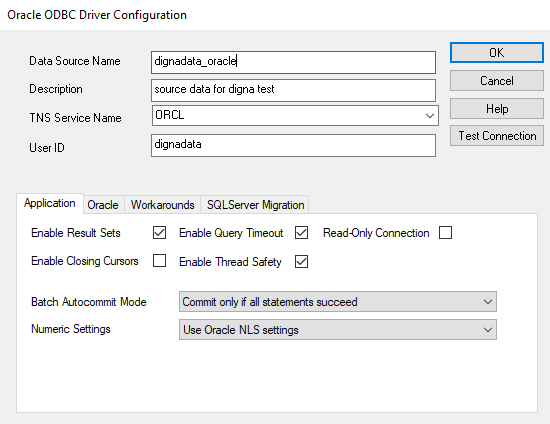
The TNS Service Name offered here comes from the tnsnames.ora of your Oracle Client installation — that is where the alias, and with it the host, port and service name, is defined. In digna you can use the alias as DBQ, or the full descriptor instead.
Step 2 – Test the connection
Click the Test Connection button.
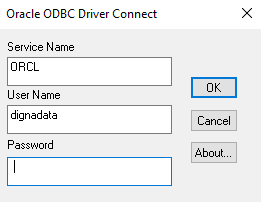
Provide the password and click the OK button.
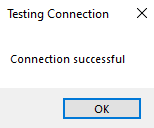
A success message confirms that the driver and the credentials work.