Source Connector for Databricks
This guide describes how to configure digna to connect to Databricks over ODBC, using a DSN-less connection string.
The digna side of the setup is the same for every technology — where connections are created, how property values are encrypted, how a connection is tested and what the profiling modes mean. It is described in Database Connections Overview. This page covers what is specific to Databricks.
Unity Catalog is required
digna reads the available catalogs from system.information_schema.catalogs, so the workspace must be Unity Catalog enabled. Earlier digna releases offered a separate "Databricks Legacy" technology for workspaces without Unity Catalog; it is no longer available.
1. Install the ODBC Driver
Install the Databricks ODBC Driver on the machine that runs the digna backend, following Databricks' installation guide.
Depending on the version, the driver registers itself as Simba Spark ODBC Driver or as Databricks ODBC Driver. Read the exact registered name off your host as described in Install the ODBC Driver on the digna Host.
2. Gather the Connection Details
All values come from the SQL warehouse (or cluster) you want digna to use. Open it in the Databricks workspace and go to Connection details:
| Databricks field | Used as |
|---|---|
| Server hostname | Host |
| Port | Port, normally 443 |
| HTTP path | HTTPPath |
For authentication, create a personal access token — see Databricks personal access token authentication. Tokens belong to a user or service principal, and that principal needs USE CATALOG, USE SCHEMA and SELECT on the source data.
3. ODBC Properties
An example, not a specification
The set below is one combination that is known to work. The properties belong to the Databricks/Simba driver, so their names, defaults and accepted values differ between driver versions — the driver has been renamed and its authentication options extended more than once — and between platforms. Use this as a starting point and check the documentation of the driver version you installed.
Add the following properties in the Add DB Connection screen:
| Key | Example value | Notes |
|---|---|---|
Driver | Simba Spark ODBC Driver | Must match the driver name registered on the digna host |
Host | <workspace>.cloud.databricks.com | Server hostname of the warehouse, e.g. adb-1234567890123456.12.azuredatabricks.net |
Port | 443 | |
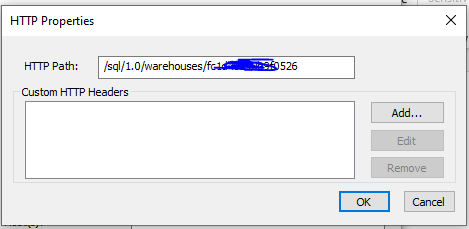
HTTPPath | /sql/1.0/warehouses/<warehouse-id> | HTTP path of the warehouse or cluster |
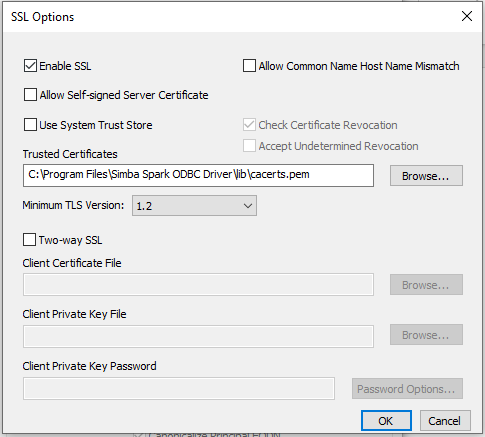
SSL | 1 | Databricks endpoints are TLS-only |
ThriftTransport | 2 | HTTP transport, which is what the SQL endpoints speak |
AuthMech | 3 | Token authentication |
UID | token | The literal word token, not a user name |
PWD | dapi… | The personal access token. Tick Encrypted |
UseNativeQuery | 1 | Passes digna's SQL through unchanged — see below |
The resulting connection string looks like this:
Driver=Simba Spark ODBC Driver;Host=<workspace>.cloud.databricks.com;Port=443;HTTPPath=/sql/1.0/warehouses/<warehouse-id>;SSL=1;ThriftTransport=2;AuthMech=3;UID=token;PWD=dapi…;UseNativeQuery=1
Keep UseNativeQuery=1
With UseNativeQuery=0 — the driver's default — the driver rewrites incoming SQL into what it believes is portable ODBC syntax. digna already generates Databricks SQL, so the rewrite can change backtick quoting and date literals, and profiling then fails on statements that are valid as written.
OAuth instead of a token
For a service principal with OAuth machine-to-machine authentication, replace AuthMech, UID and PWD with:
| Key | Example value | Notes |
|---|---|---|
AuthMech | 11 | OAuth |
Auth_Flow | 1 | Client credentials |
Auth_Client_ID | <application id> | Service principal |
Auth_Client_Secret | <client secret> | Tick Encrypted |
4. digna Configuration
In the Add DB Connection screen, provide the following:
Name:               Name of the connection. This is used for referencing the connection in other screens.
Technology:         Databricks
Profiling Mode:     Standard, Permanent or Session
Work Schema:        Schema for the work tables of "Permanent" profiling, e.g. "digna_work"
5. Notes on Databricks
- The warehouse must be running, or able to start, when digna connects. A warehouse that resumes from a stopped state can take longer than the connection timeout — if the test fails on the first attempt after an idle period, retry it.
- Catalogs come from the workspace. Unlike most technologies, one Databricks connection reaches every catalog the principal is allowed to see, so a single connection can serve sources across catalogs.
- Profiling modes. Permanent creates the work tables in Work Schema inside the source's catalog, so the principal needs
CREATE TABLEthere. Session usesCREATE TEMPORARY TABLEand does not touch Work Schema. Standard needs read access only. - Serverless warehouses work the same way; only
HTTPPathdiffers.
6. Verifying the Driver (optional)
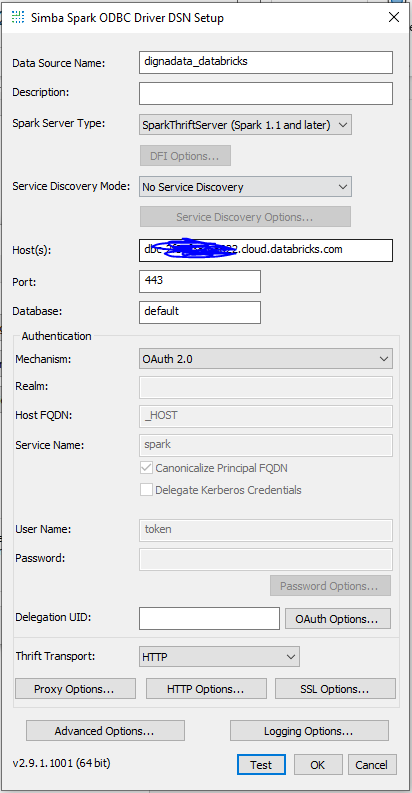
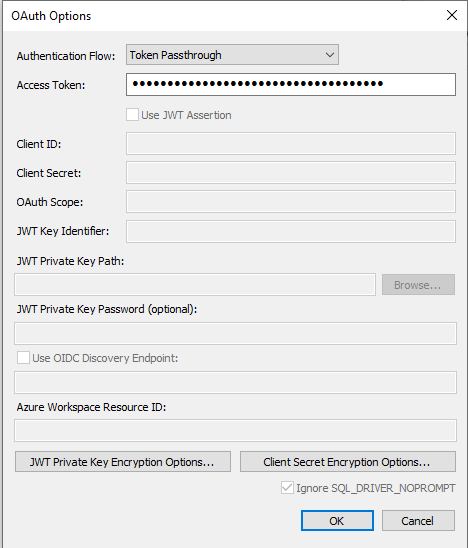
Configuring an ODBC data source is not required for a DSN-less connection, but the driver's own dialog is a convenient way to confirm that the driver, the warehouse and the token work before you enter them in digna.
Step 1
Step 2
Step 3
Step 4
Step 5 – Test the connection
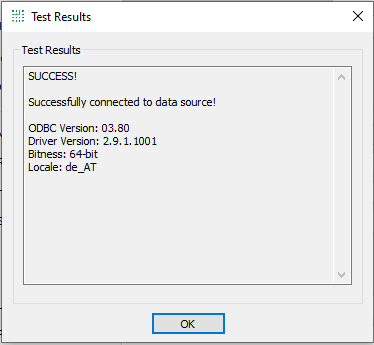
Click the TEST button. A successful connection should look like this:
The host, HTTP path and token entered here are exactly the values the properties in section 3 take.