Source Connector for Azure Synapse Analytics
This guide describes how to configure digna to connect to Azure Synapse Analytics over ODBC, using a DSN-less connection string. Both serverless and dedicated SQL pools are supported.
The digna side of the setup is the same for every technology — where connections are created, how property values are encrypted, how a connection is tested and what the profiling modes mean. It is described in Database Connections Overview. This page covers what is specific to Azure Synapse.
Technology
Synapse speaks the SQL Server dialect, so the connection is created with Technology: SQL Server. See MS SQL Server for an on-premises server.
1. Install the ODBC Driver
Install ODBC Driver 18 for SQL Server on the machine that runs the digna backend, following Microsoft's installation guide, and read the exact registered driver name off your host as described in Install the ODBC Driver on the digna Host.
2. ODBC Properties
An example, not a specification
The set below is one combination that is known to work. The properties belong to the Microsoft ODBC driver, so their names, defaults and accepted values differ between driver versions and platforms, and what the workspace requires depends on how it is configured — pool type, authentication method, firewall. Use this as a starting point and check the documentation of the driver version you installed.
Add the following properties in the Add DB Connection screen:
| Key | Example value | Notes |
|---|---|---|
DRIVER | ODBC Driver 18 for SQL Server | Must match the driver name registered on the digna host |
SERVER | <workspace>-ondemand.sql.azuresynapse.net | Workspace name plus the endpoint suffix — see below |
DATABASE | dignadata | Database that holds the source schemas. It is the only database this connection can profile |
UID | sqladminuser | SQL login |
PWD | <password> | Tick Encrypted |
The resulting connection string looks like this:
DRIVER=ODBC Driver 18 for SQL Server;SERVER=<workspace>-ondemand.sql.azuresynapse.net;DATABASE=dignadata;UID=sqladminuser;PWD=<password>
The SERVER value
Take the name of the Synapse workspace and append the endpoint suffix:
| Pool | SERVER |
|---|---|
| Serverless SQL pool | <workspace>-ondemand.sql.azuresynapse.net |
| Dedicated SQL pool | <workspace>.sql.azuresynapse.net |
The -ondemand part is easy to miss
Without it, the name resolves to the dedicated endpoint, and the connection either fails or silently reaches a different pool than intended. Both endpoints are shown on the workspace overview page in the Azure portal.
Firewall
The Synapse workspace firewall must allow the outbound address of the digna host. Add it under Networking in the workspace before testing the connection — a blocked address shows up as a connection timeout rather than an authentication error.
Microsoft Entra ID authentication
Instead of a SQL login, the driver can authenticate against Entra ID. Replace UID/PWD with the authentication method your workspace expects, for example:
| Key | Example value | Notes |
|---|---|---|
Authentication | ActiveDirectoryServicePrincipal | UID then takes the application (client) ID and PWD the client secret |
Authentication | ActiveDirectoryMSI | Managed identity of the digna host, no credentials needed |
3. digna Configuration
In the Add DB Connection screen, provide the following:
Name:               Name of the connection. This is used for referencing the connection in other screens.
Technology:         SQL Server
Profiling Mode:     Serverless SQL pool: Standard
                    Dedicated SQL pool:  Standard, Permanent or Session
Work Schema:        Schema for the work tables of "Permanent" profiling, e.g. "digna_work"
4. Notes on Azure Synapse
- Serverless pools support only Standard profiling. A serverless SQL pool cannot create tables in a database, so neither Permanent nor Session profiling can run. Standard calculates the metrics directly on the source, which is also the cheaper option, since serverless is billed per data processed.
- One connection sees one database. digna offers the schemas of the database named in
DATABASE, because Synapse, like SQL Server, reports only the current database as a catalog. - Encryption is on by default in Driver 18 and Synapse endpoints present valid public certificates, so no
EncryptorTrustServerCertificateproperty is needed. - A serverless endpoint may resume from idle on the first connect. If the connection test times out on a pool that has been unused for a while, retry it.
5. Verifying the Driver (optional)
Configuring an ODBC data source is not required for a DSN-less connection, but the driver's own wizard is a convenient way to confirm that the driver works and that the workspace accepts your credentials before you enter them in digna.
Step 1
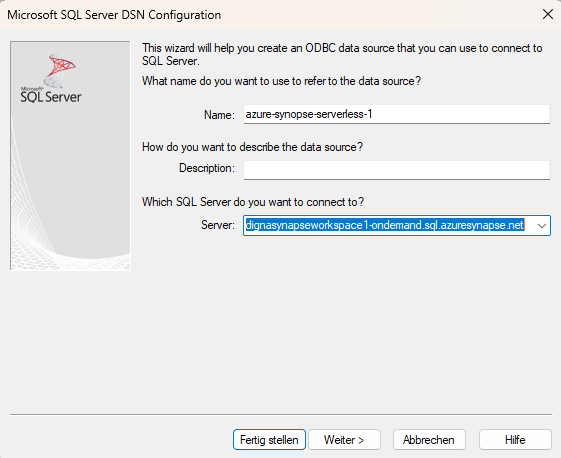
Fill out the "Server" field. Use the name of the Synapse workspace and extend it with ".sql.azuresynapse.net".
Attention, if you want to connect using a serverless SQL pool, make sure to include "-ondemand" as shown in the screenshot above.
Click the Next > button.
Step 2
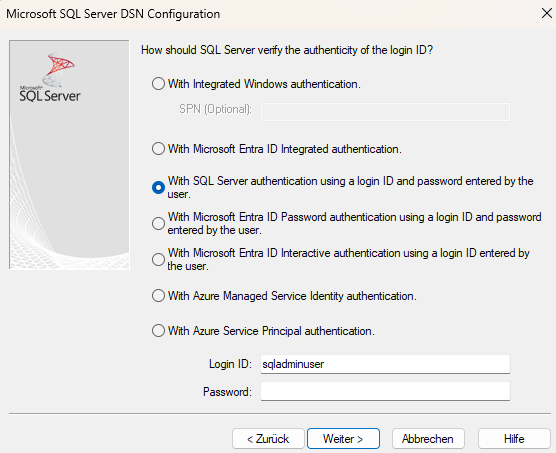
Choose the authentication method (e.g. username and password) and provide the required data.
Click the Next > button.
Step 3
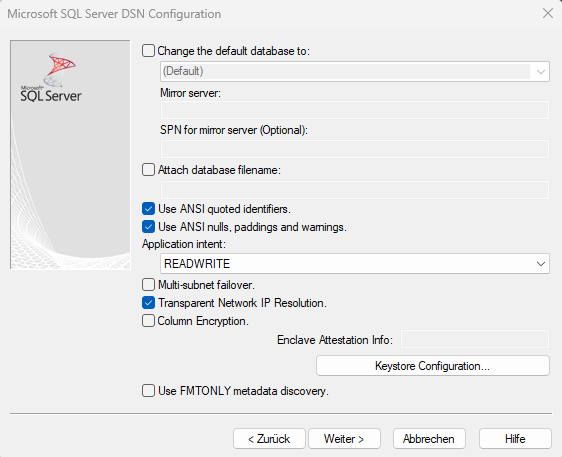
Choose the ANSI compliant settings then click the Next > button.
Step 4
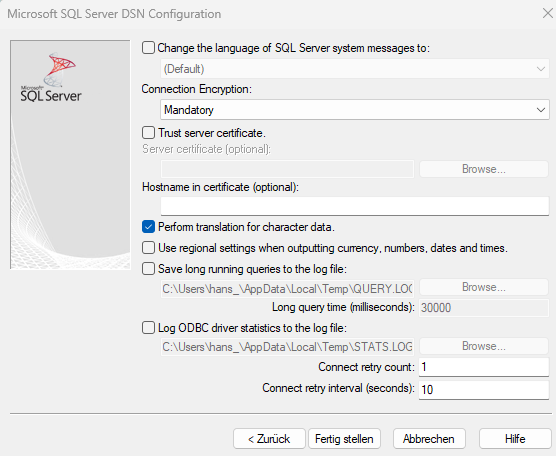
You can leave the default settings or choose options as needed and click the Finish button.
Step 5
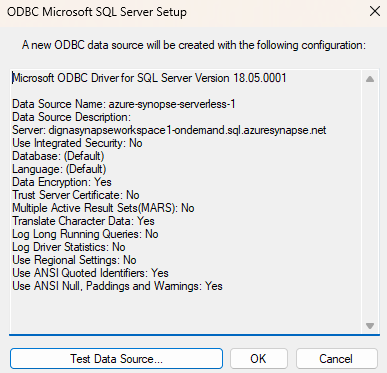
Now click the Test datasource button.
Step 6
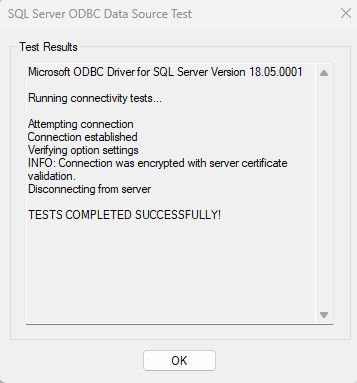
A success screen confirms that the driver, the endpoint and the credentials work. The values you entered are exactly the values the properties in section 2 take.